What are we doing?
The drivers and the various firmware modules that run when a computer boots up are checked by the kernel for their authenticity using certificates (sort of similar to TLS authentication of a webpage where the browser uses the public keys to unlock the website certificate and verify if it signed by a CA and that the certificate belongs to that website).
This verification process protects you against sketchy drivers (bootKit and rootKit) from loading into your OS and runs only on computer with Secure Boot enabled in the BIOS.
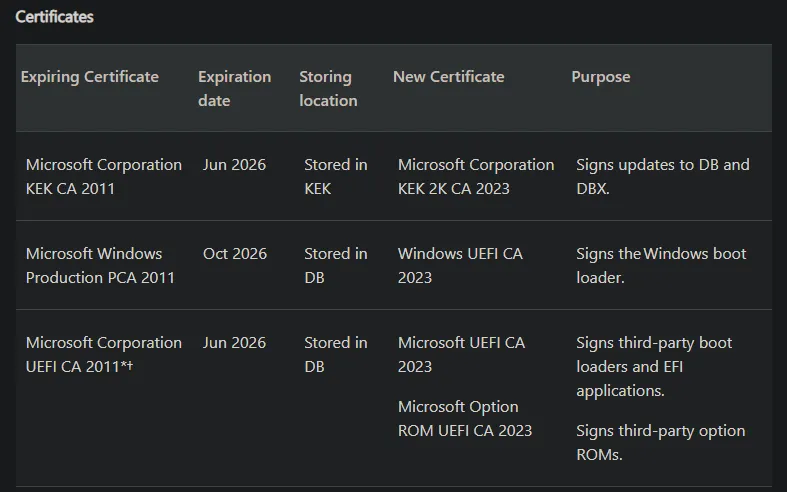
It looks like the certificates issued by Microsoft (version 2011) for the various start-up modules are being revoked soon (related to BlackLotus vulnerability??) between June and October 2026. They have already issued replacements (version 2023).
We have to config our computers so it reaches out to MS servers and install/replace the expiring ones.
If your computer was manufactured within the last two years, you most likely not have to update the certificates. However, it’s a smart move to do a quick sanity check.
Implications of not updating the Certs
- Latest BIOS updates may fail
- Windows updates may fail
- Failing to trust new drivers/software/bootloaders that are signed using the 2026 keys
- No updates for the Windows Boot Manager
What certificates are they updating?
Prerequisites for the update
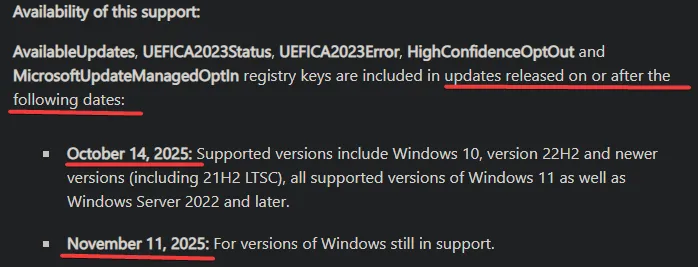
Not all computers are eligible for this boot cert update.
- See below screenshot for OS requirements (https://support.microsoft.com/en-us/topic/registry-key-updates-for-secure-boot-windows-devices-with-it-managed-updates-a7be69c9-4634-42e1-9ca1-df06f43f360d#bkmk_device_testing:~:text=Availability%20of%20this%20support%3A%C2%A0%C2%A0):
- Supported hardware. Check your computer vendor website for the list of models they support for the update.
Quick certificate version check
Run the below PS commands (with admin privileges) to check what year of certificate is installed for each:
[System.Text.Encoding]::ASCII.GetString((Get-SecureBootUEFI db).bytes) -match 'Microsoft Corporation UEFI CA 2011'

[System.Text.Encoding]::ASCII.GetString((Get-SecureBootUEFI db).bytes) -match 'Microsoft Windows Production PCA 2011'

[System.Text.Encoding]::ASCII.GetString((Get-SecureBootUEFI KEK).bytes) -match 'Microsoft Corporation KEK CA 2011'

[System.Text.Encoding]::ASCII.GetString((Get-SecureBootUEFI KEK).bytes) -match 'Microsoft Corporation KEK 2K CA 2023'

[System.Text.Encoding]::ASCII.GetString((Get-SecureBootUEFI db).bytes) -match 'Windows UEFI CA 2023'

[System.Text.Encoding]::ASCII.GetString((Get-SecureBootUEFI db).bytes) -match 'Microsoft UEFI CA 2023'

[System.Text.Encoding]::ASCII.GetString((Get-SecureBootUEFI db).bytes) -match 'Microsoft Option ROM UEFI CA 2023'
How to Update the Certs
There are two ways to update:
- Through monthly windows update
Don’t depend on MS entirely for this update cause:
-
Let’s say there’s some issues with some computer like outdated BIOS and if you depend on MS update, it may never happen.
-
MS may not choose certain devices for cert update. Yes they choose devices based on their confidence that the hardware can update cert without problems.
However this is based on THEIR confidence and there is a possibility of mis-calculation (https://support.microsoft.com/en-us/topic/secure-boot-certificate-updates-guidance-for-it-professionals-and-organizations-e2b43f9f-b424-42df-bc6a-8476db65ab2f#bkmk_automated_deployment_assists:~:text=Boot%20certificate%20updates.-,Automated%20deployment%20assists,-Microsoft%20is%20providing)
- Manually by changing some registry key values. See section Technical Understanding of Certificate Update below on how to do the update manually.
Preparing for Certificate Update
1. In an enterprise environment, MS recommends testing the update with a sample set of computers.
Each sample can have about 2-4 computers with the same model, **** 1. Enable secure boot 2. Check using PS: Confirm-SecureBootUEFI
-
Update Dell firmware to latest update - Use Dell Command Update CLI tool
MS recommends OEM firmware updates before proceeding: https://techcommunity.microsoft.com/blog/windows-itpro-blog/secure-boot-playbook-for-certificates-expiring-in-2026/4469235#:~:text=update%20events.-,Step%203%3A%20Apply%20OEM%20firmware%20updates%20before%20Microsoft%20updates,-Updated%20firmware%20can
Technical Understanding of Certificate Update
The cert update is initiated by changing a few registry key values.
This can be done by directly changing the key-value using PowerShell script with an orchestration system, Group policy or Windows Configuration System (WinCS).
Note that WinCS is only available with certain updates, so not all computers have it. See below:
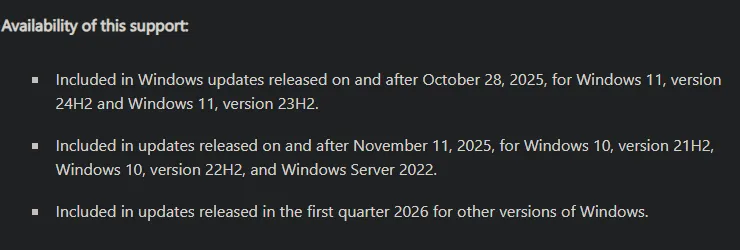
All Secure Boot related registry keys are under these two paths:
HKEY_LOCAL_MACHINE\SYSTEM\CurrentControlSet\Control\SecureBoot
HKEY_LOCAL_MACHINE\SYSTEM\CurrentControlSet\Control\SecureBoot\Servicing - UEFICA2023Status, UEFICA2023Error
By changing the AvailableUpdates registry value (HKEY_LOCAL_MACHINE\SYSTEM\CurrentControlSet\Control\SecureBoot) to 0x5944, the certificate update process is triggered.
Once this is triggered, Windows sort of does some self-diagnosis and evaluates whether the computer is ready for the cert update - indicated through ‘confidence’ levels in Event ID 1801:
“High Confidence”, “Needs More Data”, “Unknown”, and “Paused” . We would want to target computers with “High Confidence”
There is a scheduled task in Windows created after the November update that checks the values in the AvailableUpdates flag every 12 hours. Depending on the value in the flag it does the corresponding updates:
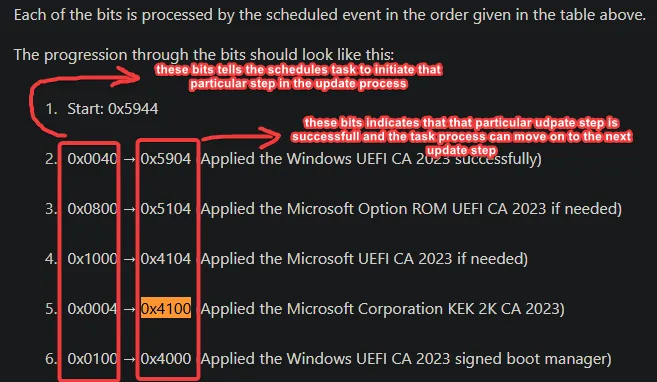
You can also force start the scheduled task to begin the update process immediately.
PowerShell Script
Below is a PowerShell script I put together to automate the steps in the above section.
function checkSecureBoot {

        if (Confirm-SecureBootUEFI -ErrorAction Stop){
            Write-Output "Secure Boot is Enabled. Good...proceeding"
        } else {
            Write-Error "Secure Boot is NOT enabled! Exiting script"
            exit 1
        }
}

function checkFirmwareUpdates{

    if (Test-Path -Path "C:\Program Files\Dell\CommandUpdate\dcu-cli.exe" -PathType Leaf){
        $dcu_path="C:\Program Files\Dell\CommandUpdate\dcu-cli.exe"
    }elseif(Test-Path -Path "C:\Program Files (x86)\Dell\CommandUpdate\dcu-cli.exe" -PathType Leaf){
        $dcu_path="C:\Program Files (x86)\Dell\CommandUpdate\dcu-cli.exe"
    } else {
        return $firmware_update="installDCU"
    }

    # & "C:\Program Files\Dell\CommandUpdate\dcu-cli.exe" /scan -updateType="bios,firmware" | Out-Null

    & $dcu_path /scan -updateType="bios,firmware" | Out-Null
    Write-Host "The exit code of the last command was: $LASTEXITCODE"
    if ( $LASTEXITCODE -eq 0 ){
      Write-Output "Pending firmware update!..exiting script"
      exit 1
    } elseif ( $LASTEXITCODE -eq 500 ) {
        Write-Output "Firmware Upto date.... proceeding....."
    } elseif ( $LASTEXITCODE -eq 5 ){
        Write-Output "Theres a pending firmware/bios update reboot.....do that and run package again...."
        exit 1
    }
}

function checkEvents {
    $allEventIds = @(1801,1808)

    $events = @(Get-WinEvent -FilterHashtable @{LogName='System'; ID=$allEventIds} -MaxEvents 20 -ErrorAction SilentlyContinue)

    # 2. Get the most recent 1801 event
    $latest_1801_Event = $events | Where-Object {$_.Id -eq 1801} | Sort-Object TimeCreated -Descending | Select-Object -First 1
    $latest_1808_Event = $events | Where-Object {$_.Id -eq 1808} | Sort-Object TimeCreated -Descending | Select-Object -First 1

    if ($latest_1808_Event) {

        if ($latest_1808_Event.Message -match 'This device has updated Secure Boot CA/keys') {
            Write-Output "Event 1808 is already generated: This device has updated Secure Boot CA/keys. Stopping script."
            exit 0
        }

    }

    if ($latest_1801_Event) {

        if ($latest_1801_Event.Message -match 'Secure Boot CA/keys need to be updated') {

                Write-Output "Computer capable of cert update...proceeding..."
            } else {

                Write-Error "Event 1801 found, however the details in the event is corrupt. Exiting script...investigate further"
                exit 1
        }

    } else {
        Write-Error "Event ID 1801 NOT found. Likely due to outdated Windows updates. Exiting script"
        exit 1
    }
}

function beginCertUpdate{
    if ((Get-ItemProperty -Path "HKLM:\SYSTEM\CurrentControlSet\Control\SecureBoot" -Name "AvailableUpdates" | Select-object -ExpandProperty AvailableUpdates) -eq 0){

        Write-Output "Beginning Boot Cert Update... Setting AvailableUpdates flag to 0x5944"

        try {
            reg add HKEY_LOCAL_MACHINE\SYSTEM\CurrentControlSet\Control\Secureboot /v AvailableUpdates /t REG_DWORD /d 0x5944 /f
        }catch{
            Write-Output "Some error occured when setting AvailableUpdates flag to 0x5944. Exiting script ..."
            Write-Output $_.Exception.Message
            exit 1
        }

        Write-Output "AvailableUpdates flag set to 0x5944"

        start-sleep -seconds 5

        Write-Output "Starting Secure-Boot-Update scheduled task"
        Start-ScheduledTask -TaskName "\Microsoft\Windows\PI\Secure-Boot-Update"

        start-sleep -seconds 5

        $timeout = New-TimeSpan -Seconds 120
        $endTime = (Get-Date).Add($timeout)

        do {
            start-sleep -seconds 1
        } until ((Get-ItemProperty -Path "HKLM:\SYSTEM\CurrentControlSet\Control\SecureBoot" -Name "AvailableUpdates" | Select-object -ExpandProperty AvailableUpdates) -eq 16640 -or ((Get-Date) -gt $endTime))

        if ((Get-ItemProperty -Path "HKLM:\SYSTEM\CurrentControlSet\Control\SecureBoot" -Name "AvailableUpdates" | Select-object -ExpandProperty AvailableUpdates) -eq 16640){
            Write-Output "AvailableUpdates flag is now set to 0x4100 (16640). Restarting Computer....."
            exit 0
             # Computer reboot set in PDQ
        } else {
            Write-Error "Couldn't set AvailableUpdates flag to 0x4100 (16640)."
Write-Output $_.Exception.Message
            exit 1
        }

    }
}

checkSecureBoot
checkFirmwareUpdates
checkEvents
beginCertUpdate
Important Keywords Explained
| UEFI Variable | Description |
|---|---|
| PK (Platform Key) | Ultimate trust anchor — unique per platform/model. Controls updating KEK. |
| PK is updated through OEM firmware updates | |
| KEK (Key Exchange Keys) | Used to authenticate updates to the signature databases - db and dbx . Updated by MS. |
| KEK is a key used to securely exchange other keys and that makes sense cause KEK is protecting/authenticating db and dbx that contains other keys. | |
| db (Allowed Signatures) | Stores public keys and trusted certificates ; things allowed to boot. Updated by MS |
| dbx (Revoked Signatures) | Stores revoked public keys and certificates/hashes; things explicitly blocked. Updated by MS |
Monitoring Cert Updates
The text value of the UEFICA2023Status registry key will indicate if your certificate deployment status is not started, in progress, or updated.
The value will change progressively until all new certificates and the new boot manager have been deployed successfully.
Track the registry key using a PowerShell script combined with an inventory or scanner tool like PDQ Inventory.
Successful Cert Update
- The AvailableUpdates key should now be set to 0x4000 or 16384
- Event 1808 generated with message “This device has updated Secure Boot CA/keys”
- UEFICA2023Status registry flag is set to Updated and UEFICA2023Error key does not exist
Run below PS commands:
[System.Text.Encoding]::ASCII.GetString((Get-SecureBootUEFI KEK).bytes) -match 'Microsoft Corporation KEK 2K CA 2023'

[System.Text.Encoding]::ASCII.GetString((Get-SecureBootUEFI db).bytes) -match 'Windows UEFI CA 2023'

[System.Text.Encoding]::ASCII.GetString((Get-SecureBootUEFI db).bytes) -match 'Microsoft UEFI CA 2023'

[System.Text.Encoding]::ASCII.GetString((Get-SecureBootUEFI db).bytes) -match 'Microsoft Option ROM UEFI CA 2023'- Here is a good PowerShell script that nicely lists all certs including PK: https://github.com/richardhicks/uefi/blob/main/Get-UEFICertificate.ps1
- You can check for the update history using:
wmic qfe list
Troubleshooting Errors
-
Audit the Windows System Event Log for Event ID 1801. This error event indicates that the updated certificates have not been applied to the device.
-
Analyze details specific to the device, including device attributes, that will help you in correlating which devices still need updating.
-
Check if the UEFICA2023Error registry key exists. If so, it indicates an error in certificate deployment. The error itself won’t appear in the Event Log. Trace related issues through Secure Boot DB and DBX variable update events.
Get-ItemProperty -Path "HKLM:\SYSTEM\CurrentControlSet\Control\SecureBoot\Servicing" -Name "UEFICA2023Error" -
Check progress of update:
Get-ItemProperty -Path "HKLM:\SYSTEM\CurrentControlSet\Control\SecureBoot\Servicing" -Name "UEFICA2023Status"
Event IDs 1801 and 1802
Event ID: 1801
This event is an error event that indicates that the updated certificates have not been applied to the device. This event gives some details specific to the device, including device attributes, that will help in correlating which devices still need updating.
Event ID: 1808
This event is an informational event that indicates that the device has the required new Secure Boot certificates applied to the device’s firmware.
All Event IDs related to cert update are here: https://support.microsoft.com/en-us/topic/secure-boot-db-and-dbx-variable-update-events-37e47cf8-608b-4a87-8175-bdead630eb69
Why is KEK not updating on some computers?
It seems to me that those computers are not supported by Dell for boot cert update and so they won’t get their Platform Key (PK) updated: https://www.dell.com/support/kbdoc/en-us/000378734/microsoft-2011-secure-boot-certificates-expiration-for-out-of-scope-platforms-for-bios-updates
Without an updated PK, the new KEK certs from MS cannot be signed and hence not updated.
You might be wondering - how come all the other certs are updated without KEK? Doesn’t the new KEK required to authenticate updates to db and dbx?
That’s true . I couldn’t find much info on this but according to ChatGPT because of how MS signed the 2023 db entries, they can be authenticated into the db using the old 2011 KEK signatures (backward compatibility).
Implications of KEK staying on 2011:
- Sometime in the future if MS decides to sign db entries to only be verified by the 2023 KEK then loading them would fail… (no backward compatibility)